
The short version
What you need to know.
- Check the exact model, hardware revision and Australian security-support deadline.
- Install official firmware updates carefully; a working connection does not prove continuing support.
- Before replacing a router, confirm NBN connection and provider home-phone requirements.
It still works. Is it still supported?
Your router is probably getting on with its job quite happily. The telly streams, the phones connect and nobody has called a family meeting about the Wi-Fi. Excellent. There is still one detail worth checking: whether somebody is maintaining the software inside it.
A router can keep passing internet traffic after its manufacturer stops providing security updates. That makes “it still works” a fairly incomplete health check. Speed tests are useful, but they cannot tell you when support ends.
Find the support date behind the blinking lights
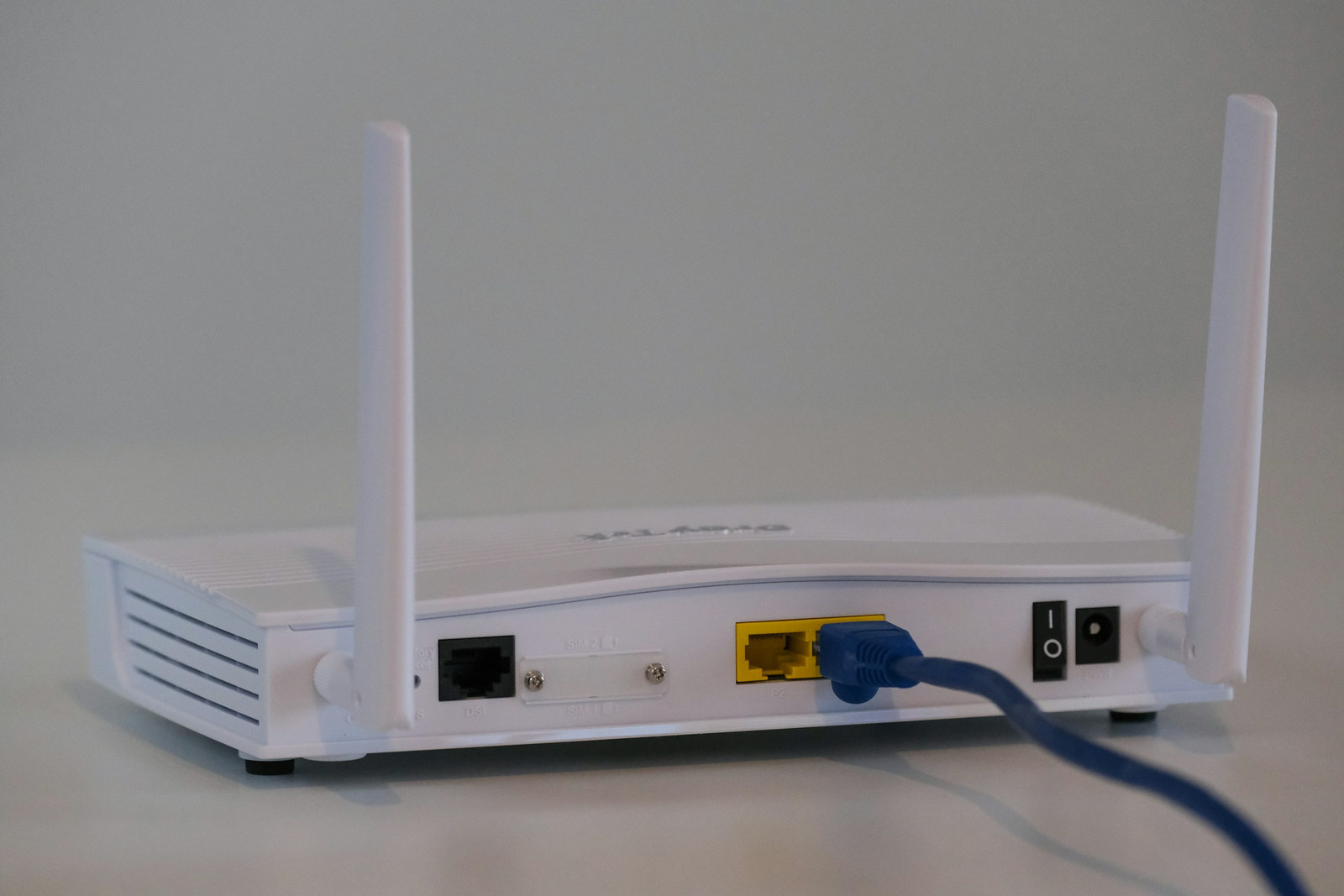
Start with the label underneath the router. Write down the exact model and hardware revision, then check the manufacturer's Australian support page. Similar names do not necessarily mean identical hardware: TP-Link's firmware guidance specifically warns owners to match the hardware version and use the correct regional website.
Next, find the installed firmware version in the router's app or settings. Firmware is the software running the box. Compare it with the official download page and look for a published security-support deadline or an end-of-life notice.
There are useful examples of what that information looks like. ASUS publishes an end-of-life list covering models it no longer updates, with regional qualifications that matter for Australian owners. TP-Link's Australian support-period table lists dates against individual models and hardware versions. Check your exact entry rather than borrowing a date from a newer version with the same family name. A support deadline is also different from your purchase date; old stock does not necessarily buy you a fresh support period.
If the provider supplied your router, ask who handles updates and whether your specific model is still supported. An update button saying you have the latest version does not, by itself, promise another security fix will ever arrive.

Update it properly, then check again
ASD's consumer cyber security handbook, published on 7 October, recommends replacing unsupported devices where possible and enabling automatic updates. It explains that equipment can still work after support ends while remaining at risk of attack. That is a useful reminder for the box we tend to forget until Netflix complains.
For supported equipment, follow the manufacturer's update instructions. Use official downloads, match the model and revision, and leave the power connected throughout the update. TP-Link warns that the wrong firmware or interrupted power can damage the device. Pick a time when losing internet briefly will not interrupt work or a home phone call.
While you are in the settings, check the basics in ASD's router advice: a strong, unique administration password, current Wi-Fi encryption and whether unnecessary remote management is enabled. A guest network can give visitors and less-trusted gadgets some separation from your main devices.
Put a six-monthly router check in the calendar, and act sooner if the manufacturer issues a security alert. If the support status is unclear, ask the manufacturer rather than treating a quiet download page as either a clean bill of health or proof the router is abandoned.
Replace the right box
Before buying anything, confirm your NBN connection type and your provider's requirements. On fibre to the premises, the NBN connection box and your Wi-Fi router perform different jobs. Replacing the household router does not mean replacing NBN's equipment.
Fibre to the node or building connections need compatible VDSL2 modem equipment. And if your home phone plugs into the provider's router, check voice compatibility before swapping it. A shiny new mesh kit is less impressive when the phone stops working.
Compare's networking finder can help narrow the hardware choices. Put a clear support commitment and straightforward updates on the shortlist alongside coverage, ports and price.
The sensible outcome might be keeping your current router and installing an update. It might be replacing an unsupported one. Either way, check the software's future before spending money on a bigger Wi-Fi number. Those blinking lights have a fairly limited vocabulary.
Primary sources
Read the evidence.
- firmware guidanceTP-Link Australia ↗
- ASUS publishes an end-of-life listASUS ↗
- TP-Link's Australian support-period tableTP-Link Australia ↗
- ASD's consumer cyber security handbookAustralian Signals Directorate ↗
- the basics in ASD's router adviceAustralian Signals Directorate ↗
- NBN connection box and your Wi-Fi router perform different jobsNBN Co ↗
- Fibre to the node or building connections need compatible VDSL2 modem equipmentNBN Co ↗
- home phone plugs into the provider's routerNBN Co ↗
Sources checked on 13 October 2026. ASD’s handbook was published on 7 October 2026; this is a support-status reminder, not an announcement of a new router vulnerability. Support commitments vary by model, hardware revision and region.
Community
Add to the article.
Useful experiences, questions and corrections make the next reader’s decision easier.
Comments appear here after moderation.